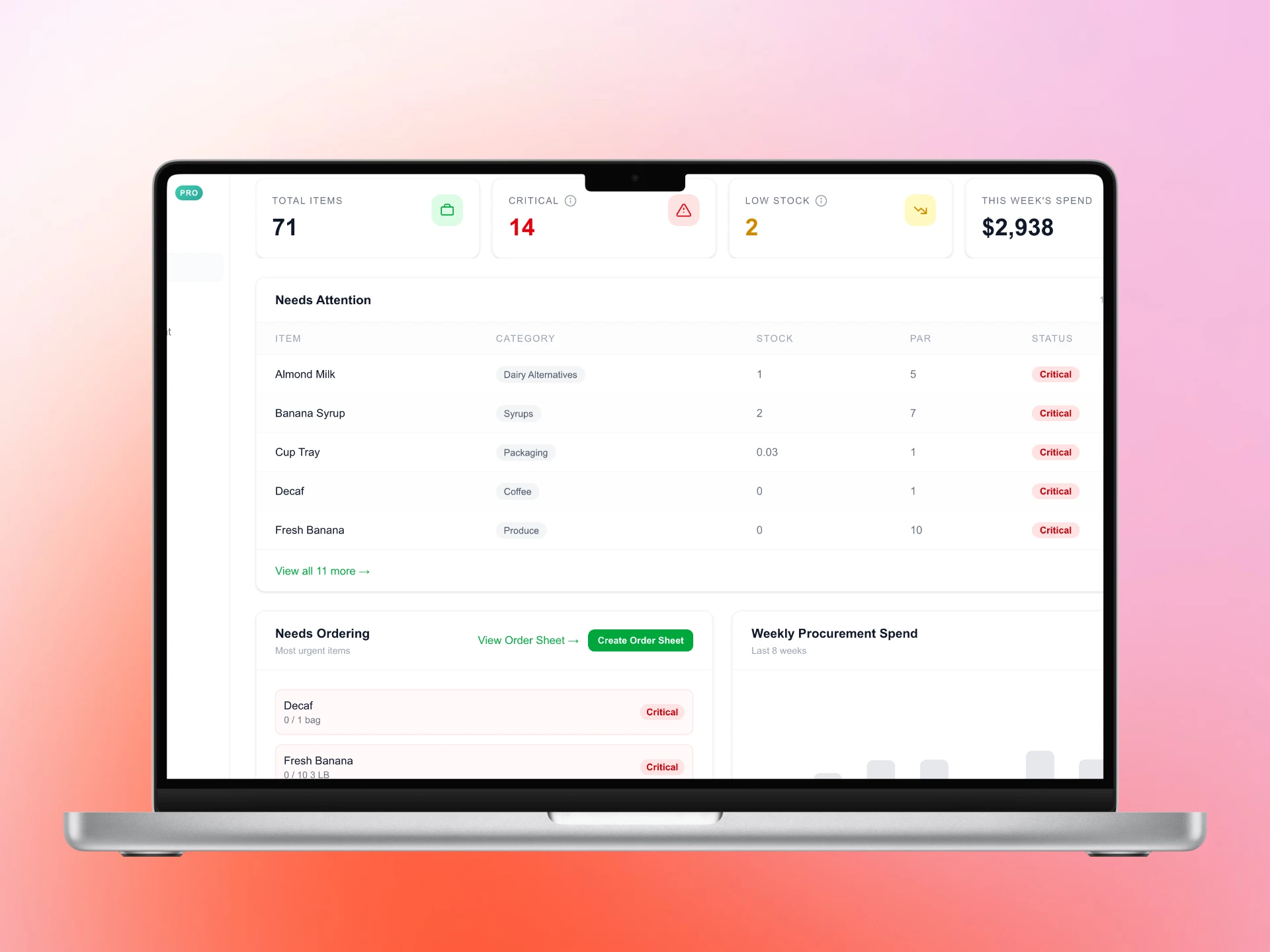
1. Import your inventory
Everything in QuickStok starts with your inventory list. If you already track stock in a spreadsheet, you can import it directly — QuickStok accepts any CSV or Excel file with item names and quantities. If you're starting fresh, you can add items one by one or let the AI build your list automatically from your first receipt upload. Go to Inventory → Import to get started.
.webp)
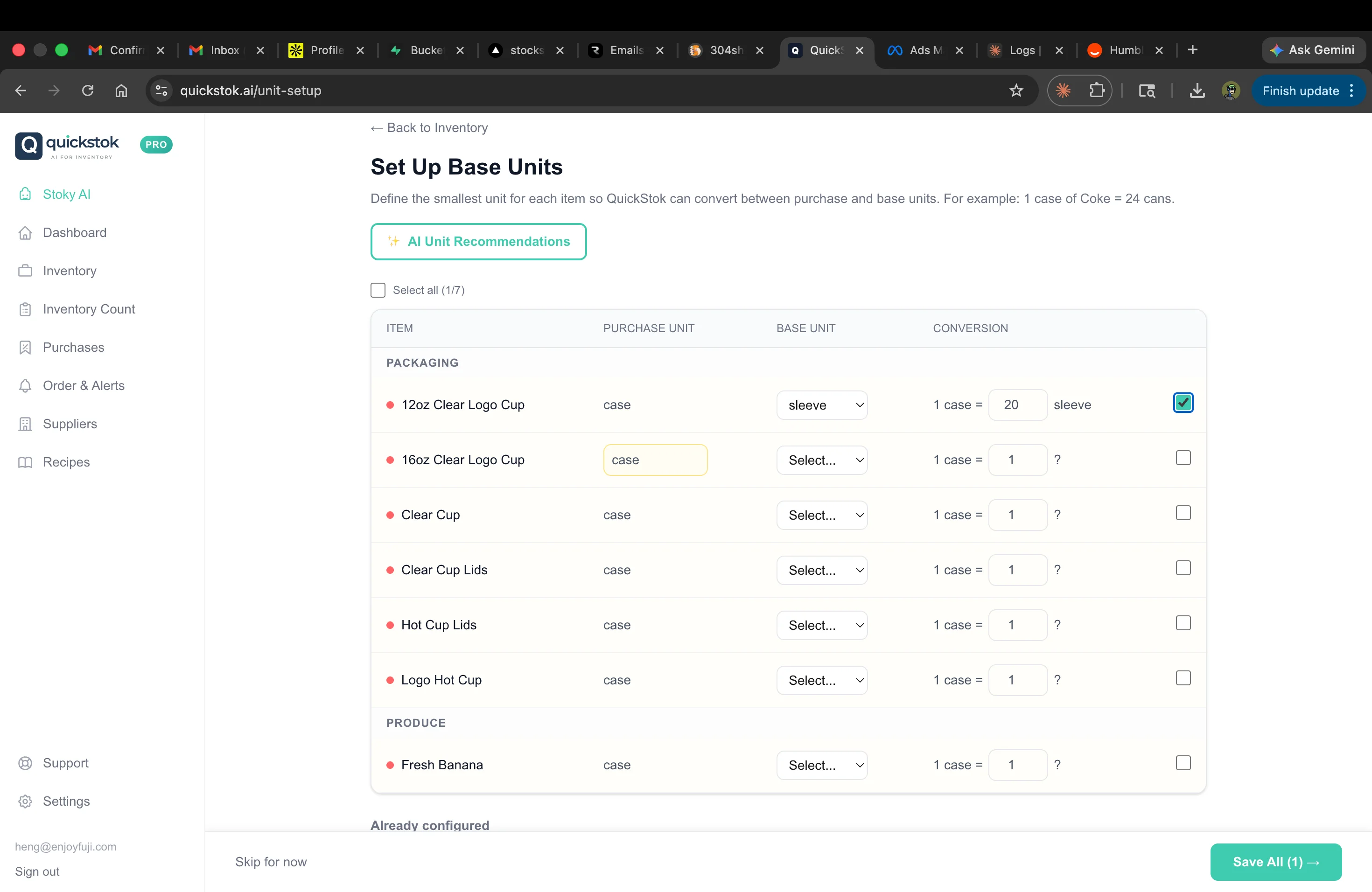
2. Set up units (purchase vs count)
QuickStok tracks two types of units: the unit you buy in (purchase unit) and the unit your staff counts in (count unit). For example, you might buy oat milk by the case but your staff counts individual cartons. Go to Unit Setup in the sidebar and set the conversion ratio for any item where these differ. This is what makes your COGS accurate and staff counts fast.
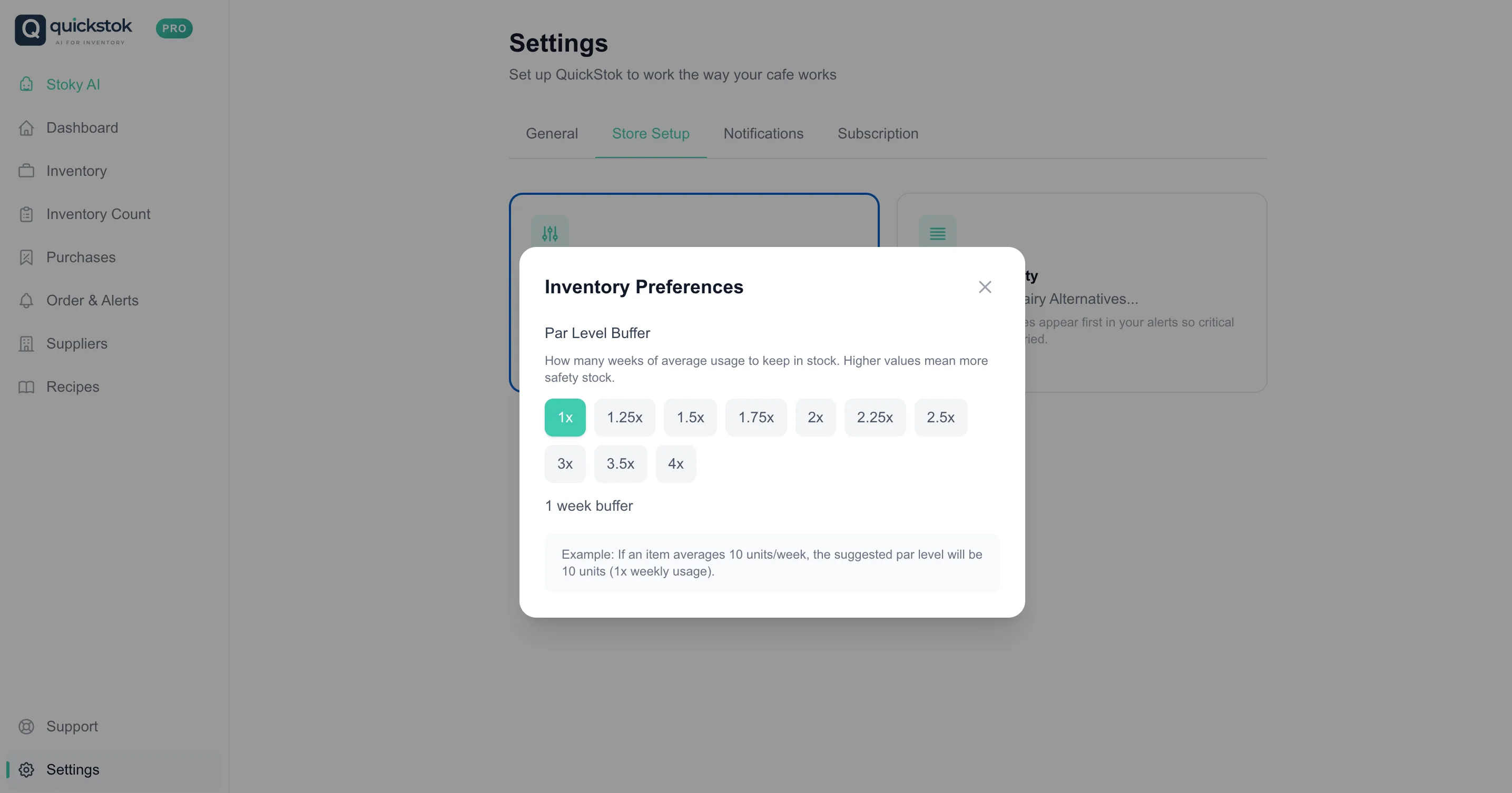
3. Set par levels
Par level is the minimum quantity you want on hand before QuickStok flags an item as low. When your stock drops to or below par, you'll get an alert and the item appears on your order sheet. Set pars directly in the Inventory list by clicking on any item, or ask Hopper: "Set oat milk par to 18 cases" and it will update instantly.
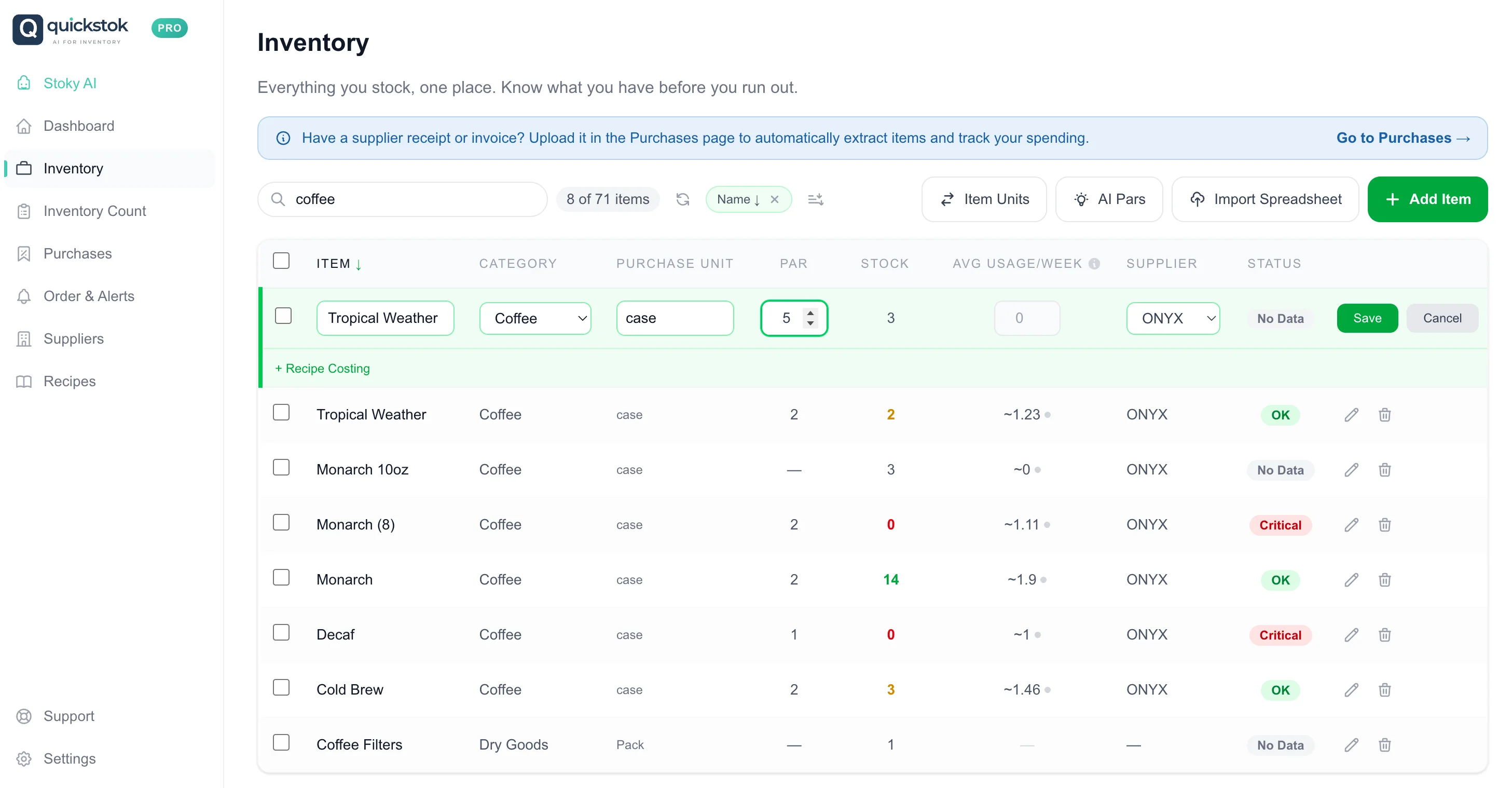
4. Set custom buffer and category priority
The buffer multiplier adds a safety cushion on top of your par level. A 1.2x buffer means QuickStok orders 20% more than your minimum par — useful for high-demand items or unreliable suppliers. Category priority lets you set which categories (Dairy, Coffee, Syrups etc.) get flagged first in your order alerts. Go to Settings → Store Setup to configure both.
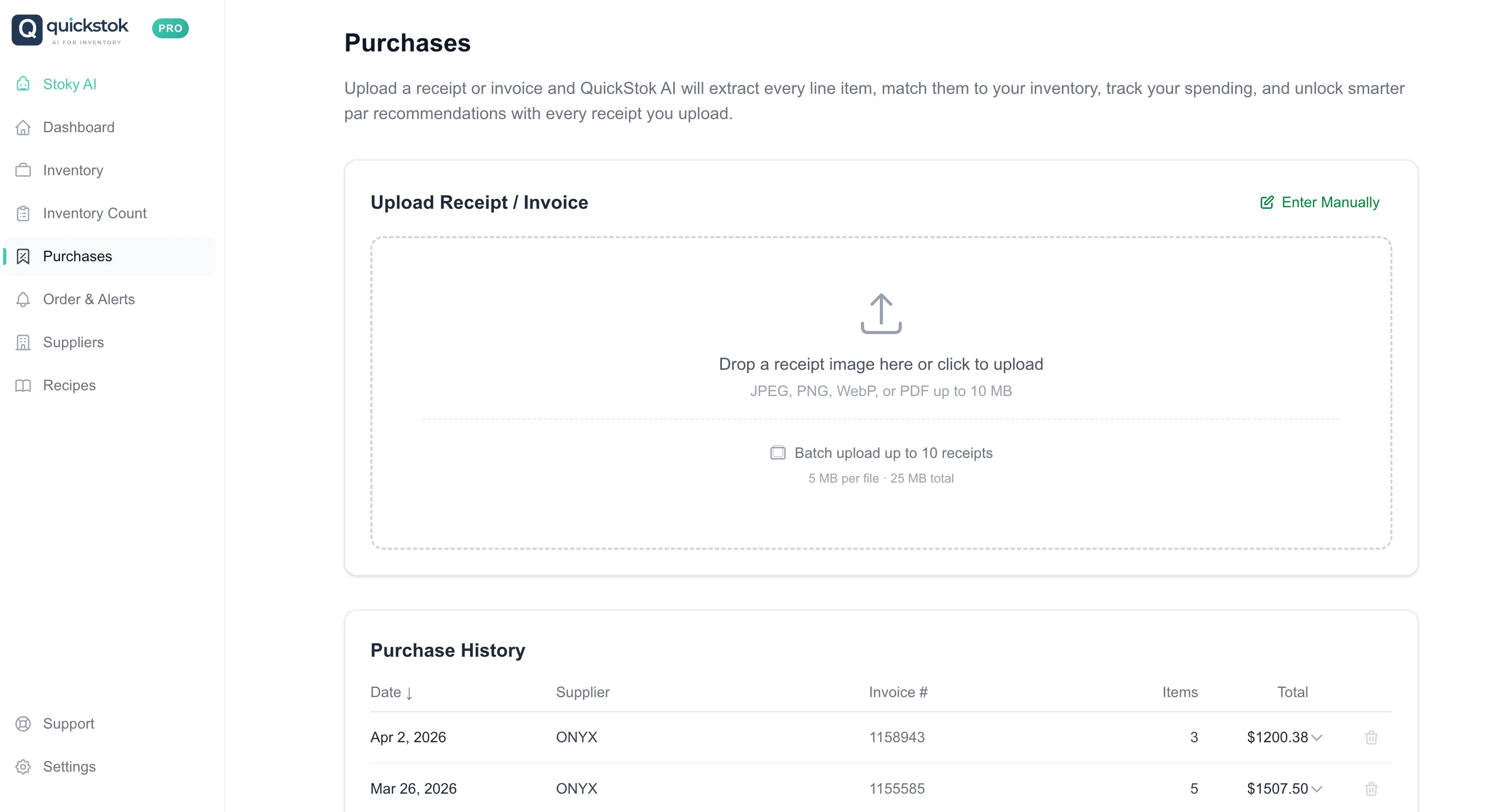
5. Upload your first receipt
Upload any supplier invoice or receipt — a photo, PDF, or email attachment. QuickStok's AI will extract every line item: product name, quantity, unit price, and supplier. It then matches items to your inventory automatically and updates prices. This is how your COGS stays accurate without manual data entry. Go to Purchases → Upload Receipt.
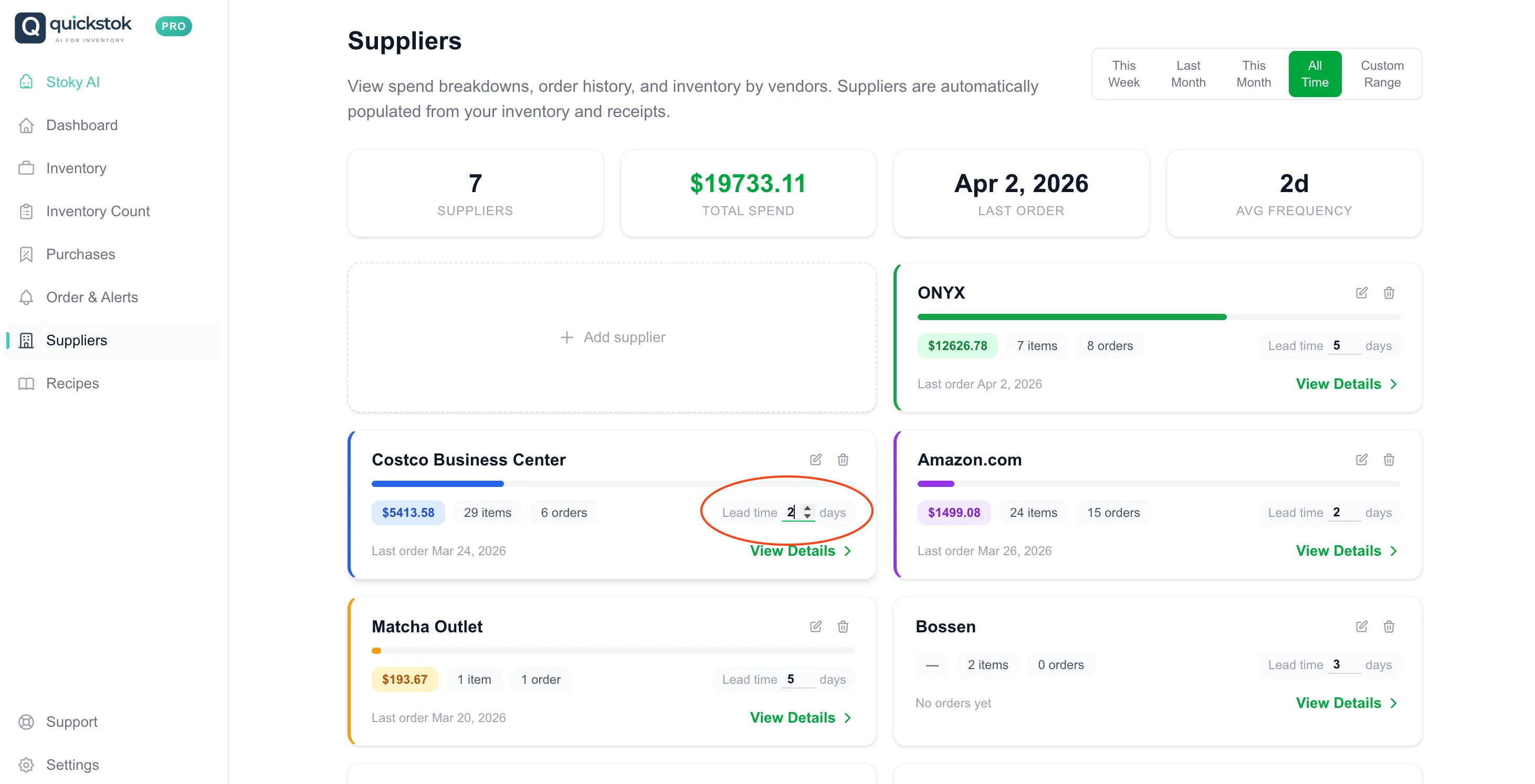
6. Set supplier lead times
Lead time is how many days between placing an order and receiving the delivery. QuickStok uses lead time to calculate when to alert you — if your Sysco delivery takes 3 days, it flags low stock 3 days before you'd run out, not the day before. Find each supplier in the Suppliers tab and set their lead time in days.
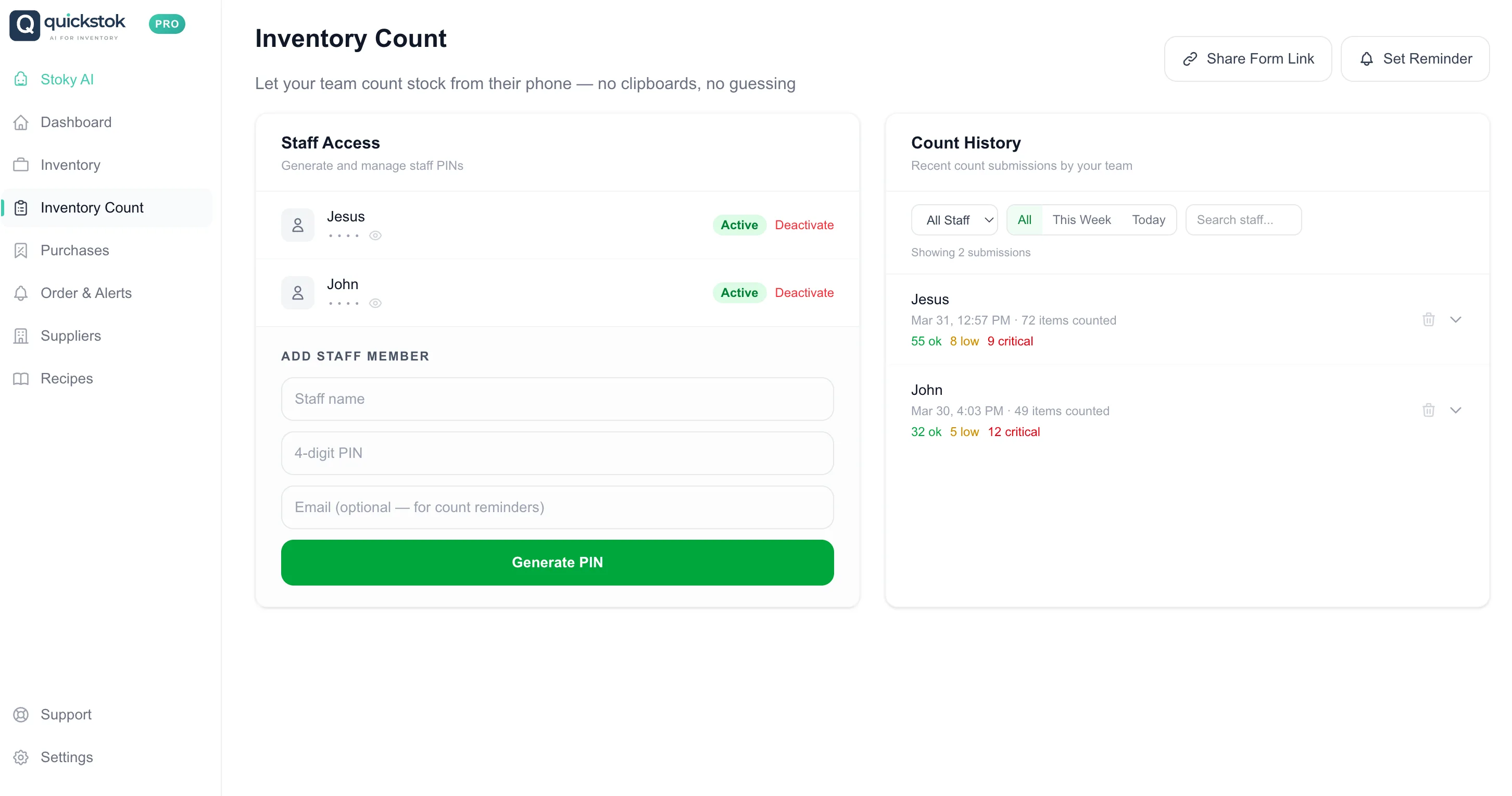
7. Add staff PINs
Staff PINs let your team submit inventory counts without accessing the full app. Each staff member gets a unique 4-digit PIN. When it's time to count, they open the Count page, enter their PIN, and submit counts for their assigned section. You see results in real time. Go to Settings → Store Setup → Staff PINs to add your team.
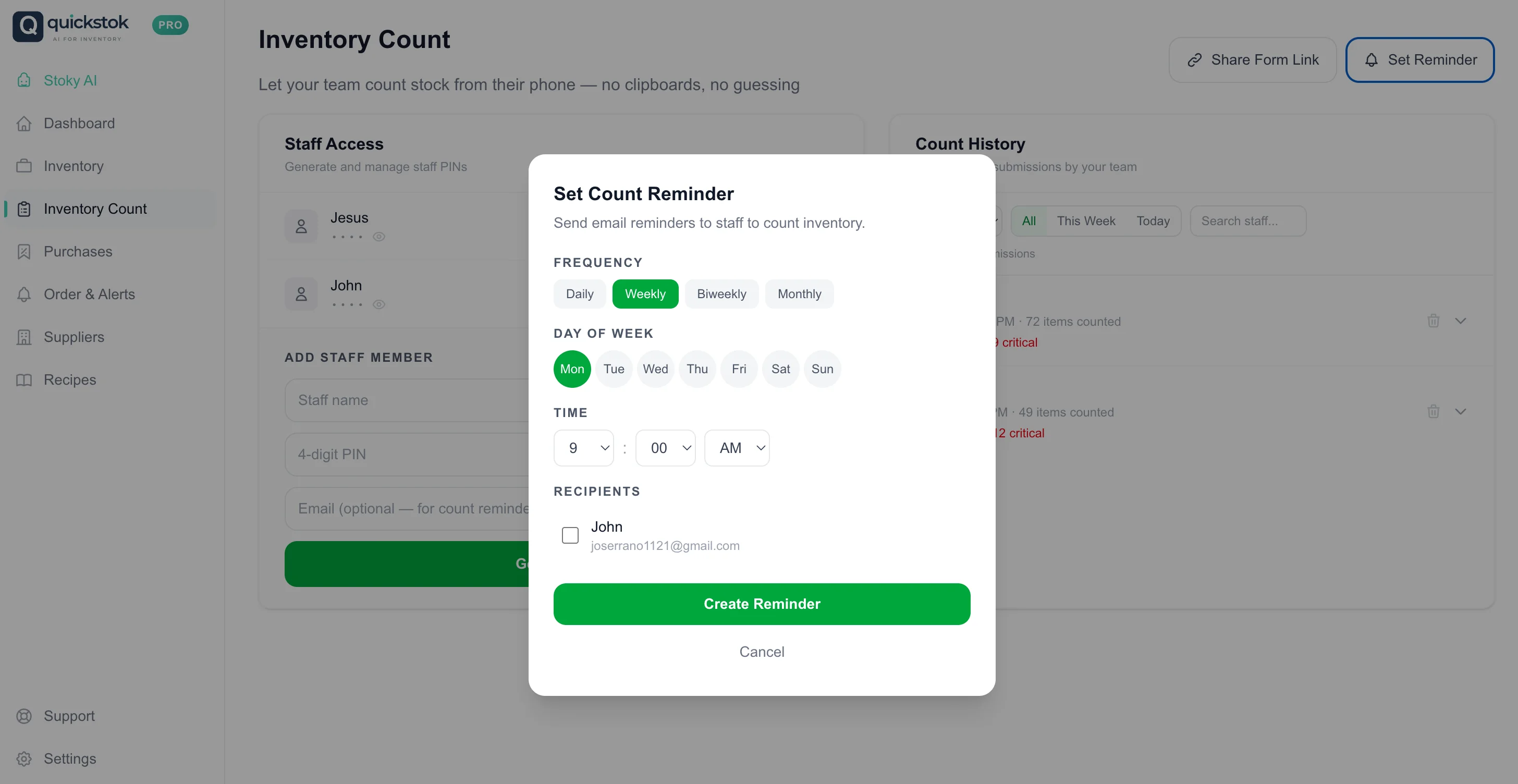
8. Set count reminders
Count reminders send an email notification to remind you (or your team) when it's time to do an inventory count. You can set a recurring schedule — daily, weekly, or custom days. Go to Settings → Notifications to set your preferred count reminder time and frequency.
9. Run your first inventory count
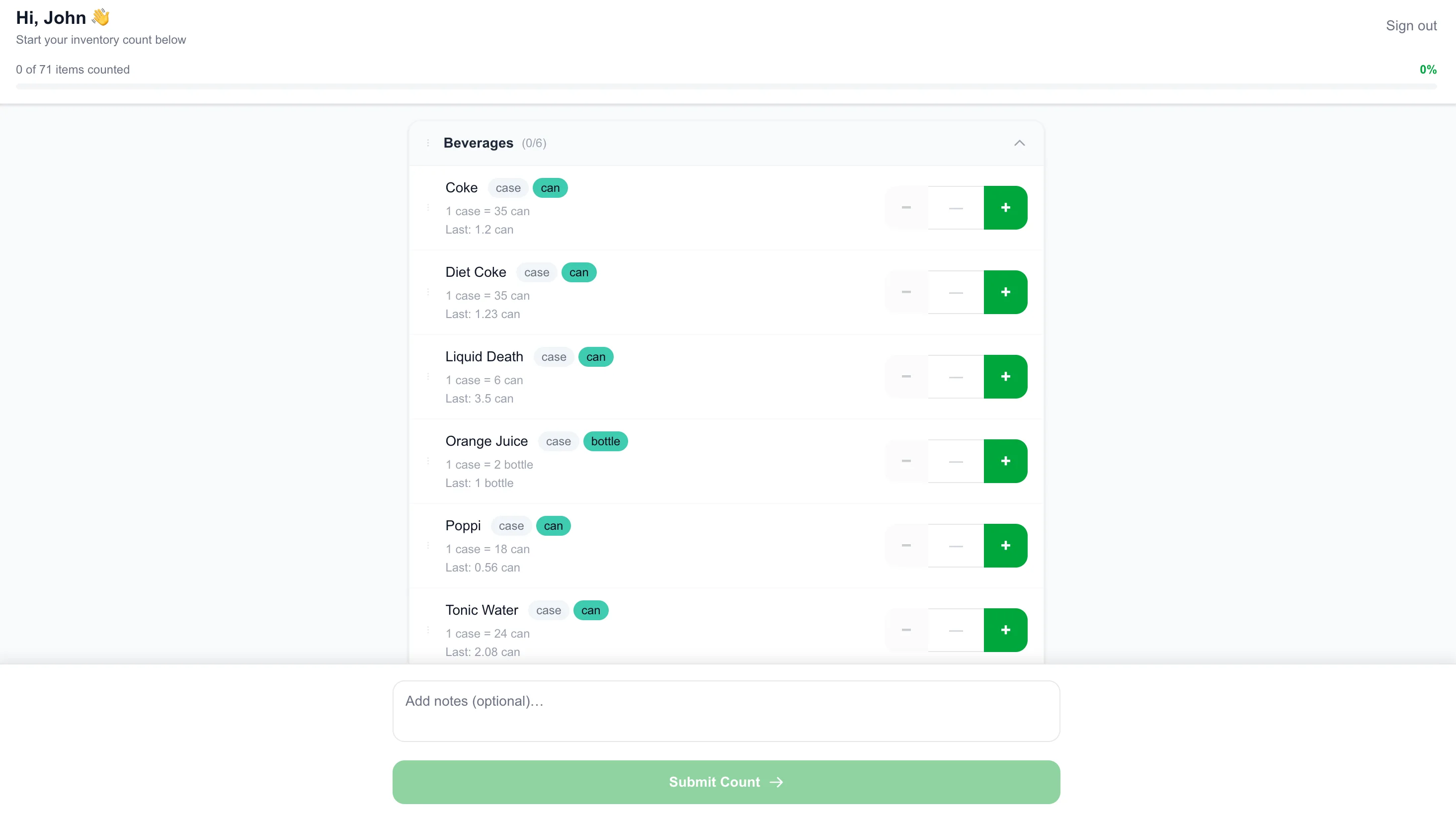
Go to Inventory Count and tap Start Count. Each item shows with an input field — enter the quantity you see on the shelf. Items default to uncounted (shown as —) so you can submit a partial count if needed. When you're done, tap Submit. QuickStok updates your stock levels, recalculates usage averages, and refreshes your order sheet.
10. Generate your first order sheet
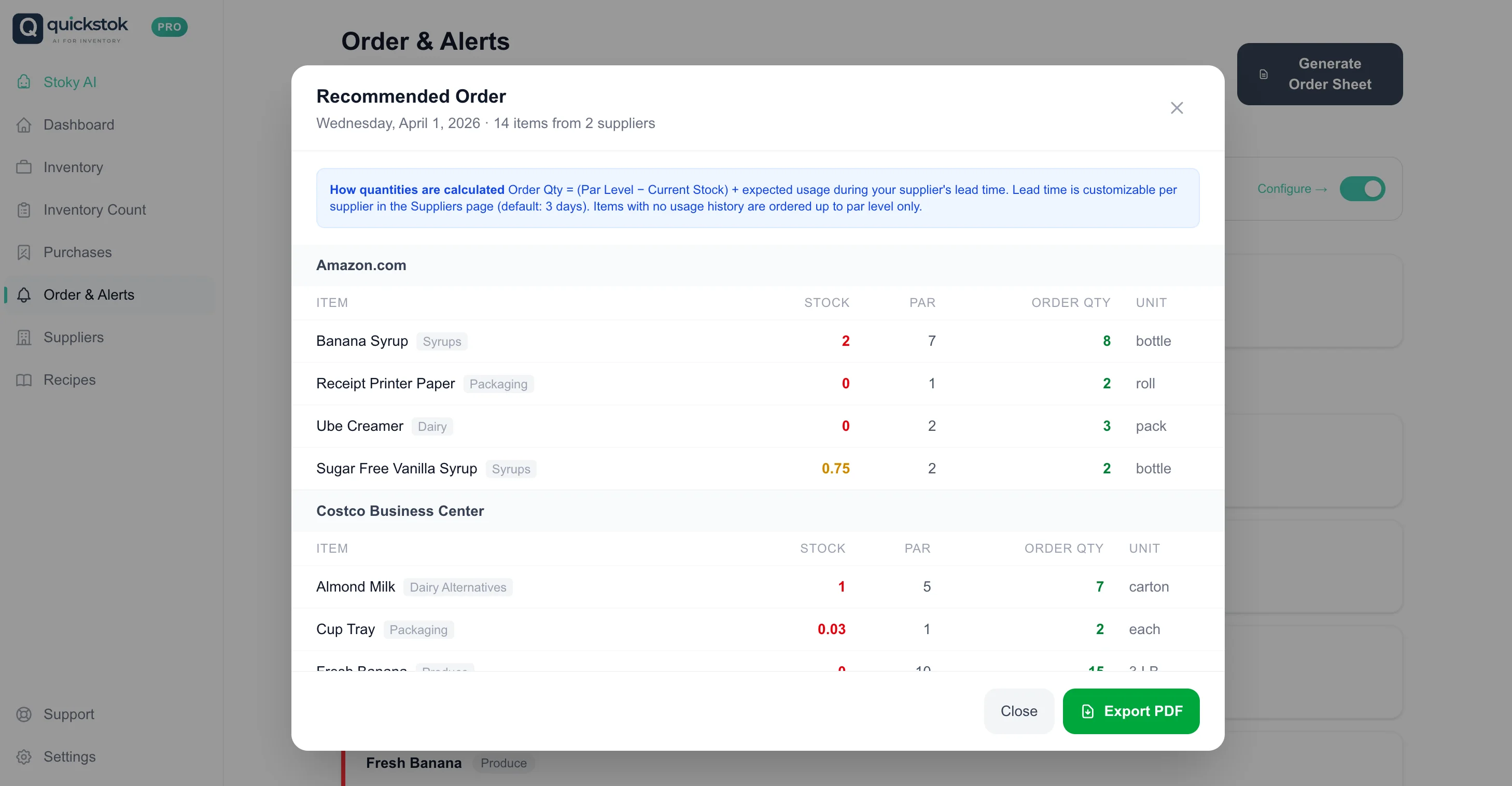
Now the fun part. Go to Order & Alerts and tap Generate Order Sheet. QuickStok looks at your current stock, par levels, buffer settings, and usage history — then builds a ready-to-send order list grouped by supplier. You can edit quantities, then download as PDF or ask Hopper to write the supplier emails for you.