Here's a free coffee shop inventory spreadsheet you can download and start using today — no signup required. It comes pre-loaded with 50+ common café items across 9 categories (dairy, coffee, dry goods, cups, syrups, cleaning, bakery, produce, and paper goods), with built-in par level tracking and reorder formulas. Below the download link, you'll find a walkthrough on how to customize it for your café and a counting workflow that takes less than 30 minutes per week.
Download the template
Download the free CSV template →
Click to download the CSV file. Open it in Excel, Google Sheets, or Numbers — no account needed, no email capture, no strings attached.
The spreadsheet has three tabs:
Items tab — Your master list. Every item your café carries, organized by category, with the supplier, unit of measure, and par level. This is where you do your initial setup and update things when suppliers change.
Count tab — Where you record actual inventory each week. Weekly columns with date headers auto-fill as you start a new count. When a cell drops below par, it highlights in red so you can see at a glance what needs attention.
Order tab — Pulls directly from the Count tab. When any item falls below par, it shows up here grouped by supplier with the quantity needed to bring you back to par. Print it, screenshot it, or forward it straight to your reps.
The three tabs are designed to flow into each other: update counts → Order tab updates itself → send the list.
What's in the spreadsheet
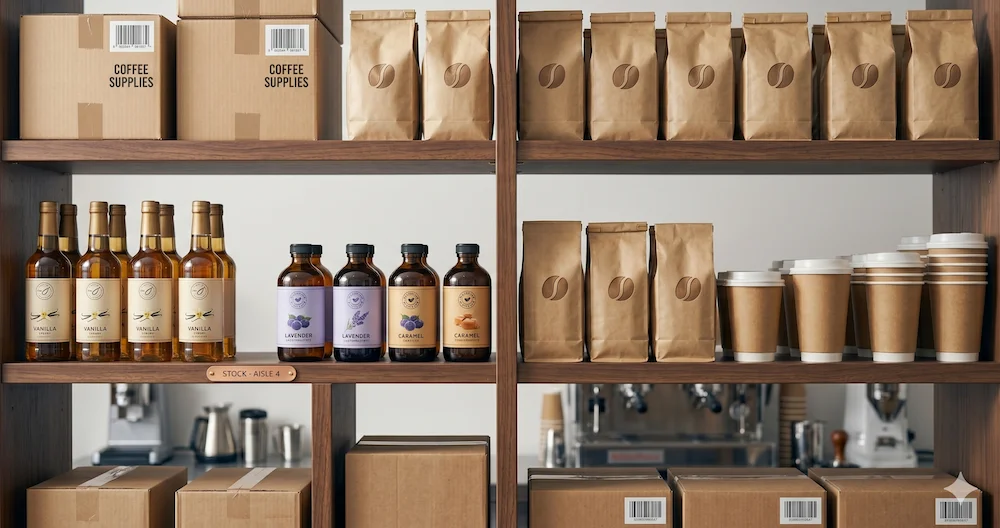
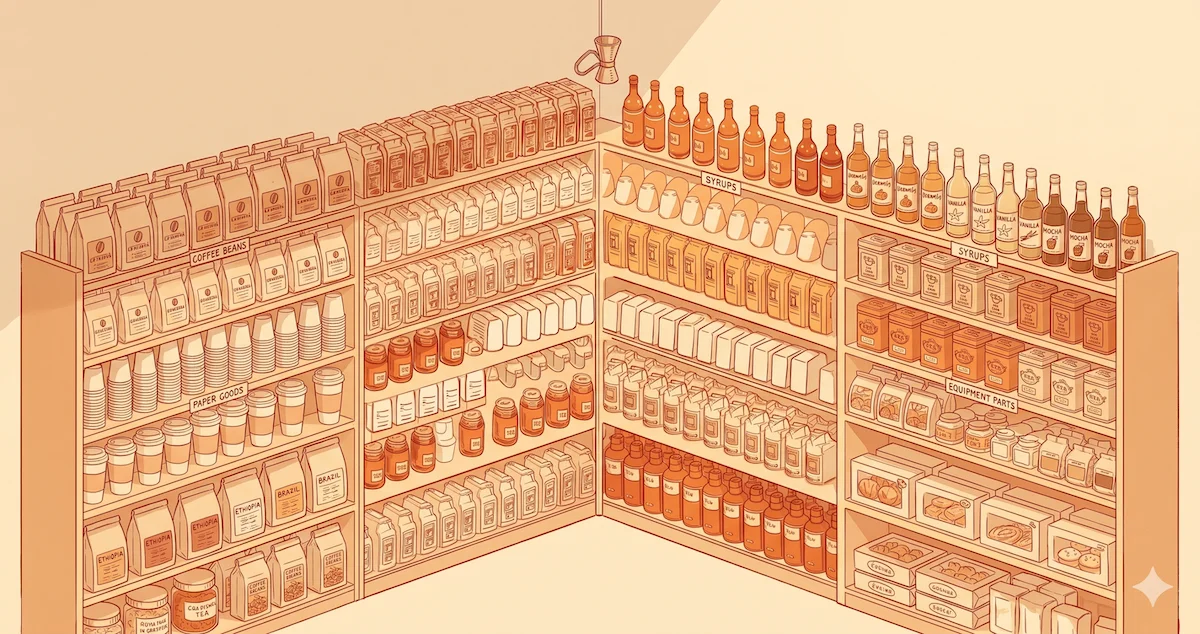
The Items tab ships with 50+ pre-filled rows organized into 9 categories:
- Dairy — whole milk, oat milk, almond milk, oat barista, heavy cream, half and half
- Coffee — espresso beans, filter coffee, decaf, cold brew concentrate
- Dry goods — sugar, sweetener packets, cocoa powder, matcha, chai powder
- Cups — 8oz hot, 12oz hot, 16oz hot, 4oz espresso, 16oz cold, 24oz cold
- Syrups — vanilla, caramel, hazelnut, lavender, brown sugar, seasonal
- Cleaning — dish soap, sanitizer, glass cleaner, paper towels, gloves
- Bakery — croissants, muffins, scones, banana bread, cookies
- Produce — lemons, limes, fresh mint, lavender sprigs
- Paper goods — napkins, stir sticks, lids (hot), lids (cold), sleeves, to-go bags
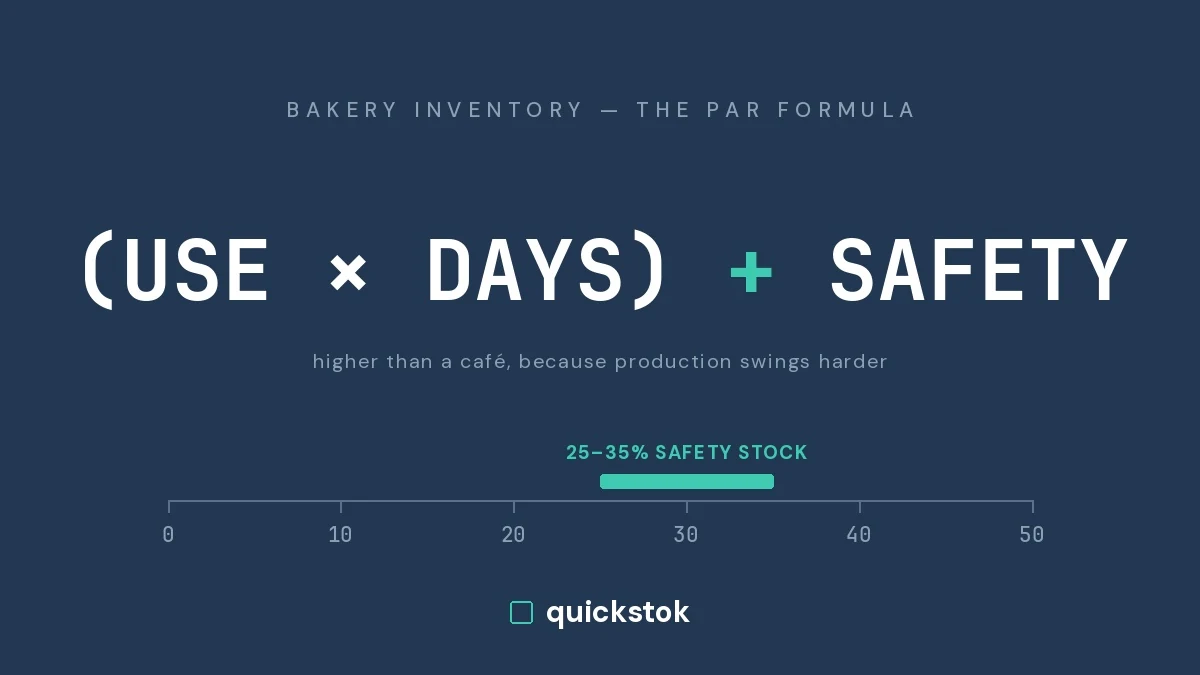
The par level column has example values pre-filled based on a 3-day supplier lead time for a café doing roughly 200 drinks per day. You'll adjust these for your actual volume and delivery schedule — the math is simple once you do it once, and the par level guide walks through the formula step by step.
The variance formula in the Count tab is also pre-built. It compares your current count to your previous week's count, adjusts for deliveries received, and flags anything burning faster than your par assumption. After a few weeks of data, you'll start to see patterns — which items you consistently undercount, which ones spike on weekends, which ones you've been over-ordering.
How to customize it for your café
The template is a starting point, not a final product. Spend 30 minutes on setup and you'll have something that actually reflects your café's reality.
Step 1: Trim and add items. Delete any rows that don't apply to you. Add rows for items specific to your menu — specialty tea blends, seasonal ingredients, retail products you sell at the bar. The more accurate your item list, the more useful the Order tab becomes.
Step 2: Fill in your suppliers. Each row has a Supplier column. Enter the name of the supplier you order that item from. The Order tab groups items by supplier automatically, so when you're placing orders you see everything you need from each rep in one place.
Step 3: Enter your delivery schedule. There's a Lead Time column (in days). If your dairy rep delivers every 2 days and your dry goods supplier delivers weekly, enter those numbers. The par level formula uses lead time to calculate how much buffer you need.
Step 4: Set your par levels. The example values are placeholders. For each item, enter the minimum quantity you want on hand before placing an order. If you're not sure, start with a round number and adjust after two or three counts. The par level formula — daily usage × lead time + safety buffer — takes about two minutes per item once you have your usage data.
Step 5: Do your first count and let the Order tab run. Walk your café, enter actual counts, and see what the Order tab generates. If anything looks wrong (a par level that's clearly too high or too low), fix it now. After the first count, the system is calibrated.
Initial setup takes 30–45 minutes for most cafés. After that, weekly counts take 20–30 minutes.
Weekly counting workflow (30 minutes)
Count before deliveries arrive, not after. Counting post-delivery records your peak stock — not your real burn rate. Count the morning before a scheduled delivery, or the evening before. That's when the data is most useful: you can see exactly what you burned through since the last count, and catch anything about to run out before it actually does.
Walk the same path every time. At my coffee shop: walk-in fridge → dry storage → bar → front counter. Consistent route means nothing gets missed.
A few habits that make counts faster:
Count in the unit you order. If oat milk comes in cases of 6 cartons, count cases — not cartons. Unit consistency prevents conversion errors in the Order tab.
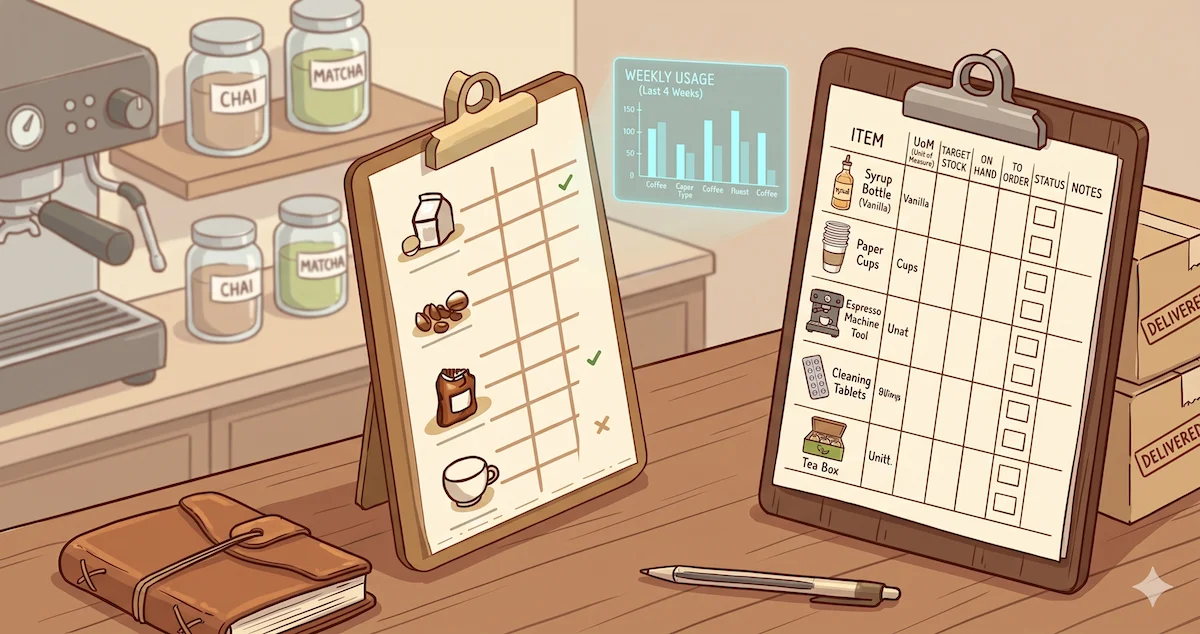
Use a phone. Open the spreadsheet on your phone and enter counts directly. Skip the clipboard-and-paper step — that's just a transcription round-trip where errors happen.
Two people is twice as fast. One person calls out the number, one enters it. Eight minutes for a full café with two people. Twenty-five minutes alone. If you have a shift lead, this is their job.
Review the Order tab before you leave. Don't close the spreadsheet after counting. Look at what got flagged. Anything with a same-day order cutoff or critically low stock needs to be handled before you walk out the door.
For building a counting habit with your staff — training, accountability, and what to do when counts come in inconsistent — the staff counting guide covers the full system.
Where spreadsheets break down
I want to be honest about this: spreadsheets work fine for many cafés, and this template might be all you need for years. But there are real limitations worth knowing about.
No receipt scanning. Every delivery has to be manually entered. If you ordered 12 cartons of oat milk and 10 showed up, you have to catch it yourself, update the count, and file the discrepancy separately.
Par levels are static. The spreadsheet doesn't know that you sell 40% more milk on weekends, or that your oat latte special in March doubles oat milk usage for the month. You update par levels by hand when patterns shift — if you notice them shifting at all.
Multi-user editing creates conflicts. Two people updating the same spreadsheet at the same time is fine right up until it isn't. One person's count overwrites another's. This usually surfaces during a busy week when two managers both do partial counts and the last save wins.
No trend visibility. You can see what you have now, but the spreadsheet doesn't surface that your lavender syrup usage has been declining for 6 weeks, or that your whole milk is trending up 15% month-over-month. That kind of analysis requires separate work.
Scales awkwardly past 50 items. At 50+ items with 4+ suppliers and different lead times, maintaining the spreadsheet starts to take meaningful time. The overhead grows, the chances of a stale par level or a missed row increase, and the spreadsheet starts to feel like a second job.
If you're hitting any of these consistently, the café inventory: spreadsheets vs. AI guide goes into detail on when it makes sense to switch and what that actually looks like.
When you're ready to upgrade
If you outgrow the spreadsheet, QuickStok is the next step. It's built specifically for independent cafés — not enterprise restaurant software scaled down, not a generic inventory app with coffee shop presets.
You can import this spreadsheet directly. It reads your item list, categories, suppliers, and par levels, so you're not rebuilding from scratch. From there, staff submit counts from their phones, supplier invoices scan automatically on delivery, and the AI suggests par levels from your count history and builds the order sheet from them.
The getting-started guide walks through the full setup in 30 minutes. It's free to start — no credit card required.
But if the spreadsheet is working for you right now, use it. A well-maintained spreadsheet beats a half-configured app every time.
Heng Qiu is the founder of QuickStok and owner of a specialty espresso bar in San Francisco. He built QuickStok after one too many Tuesday morning Instacart runs.